Download these instructions as a printable pdf file
How to edit your website’s content
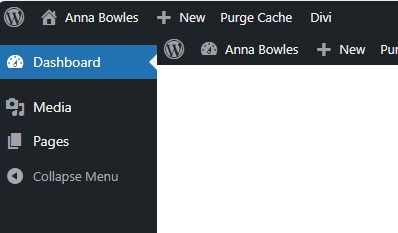
When you first login, you will see two options in the left tab column:
- Media
- Pages
How to edit your website’s pages
To edit a page, click on the Pages tab to the left of this area. You will see a list of your pages.
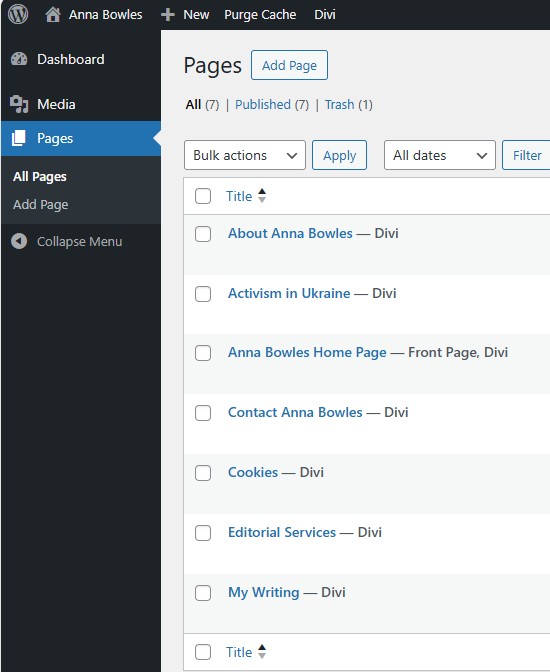
Click on the title of the page you want to edit.
For example, when you click on the title of the About Anna Bowles tab, the editing screen will look like this:
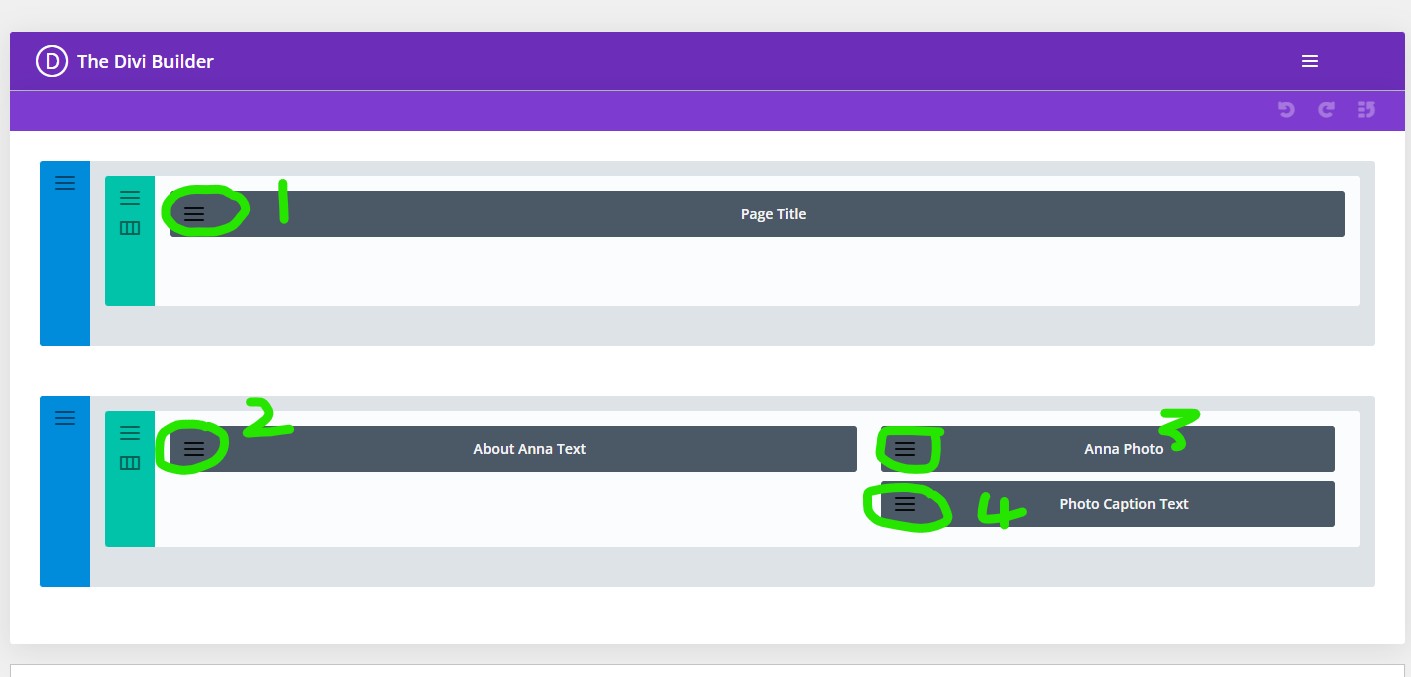
The labelled grey bars represent your content areas. Click on the three horizontal lines to open the editor for each named section on your page.
For example:
1. If you want to edit the Title text on the page, click on the grey lines on the Page Title section (circled in green – 1) This will open a text editor and you can make your changes.
2. If you want to edit the author text, click on the grey lines on the About Anna Text section (circled in green -2). This will open the text editor where you can make your text changes.
2. If you want to edit the author photo, click on the grey lines on the Author Photo section (circled in green – 3). This will open the media library, where you can choose or upload a new image.
This is how the text editing screen looks:
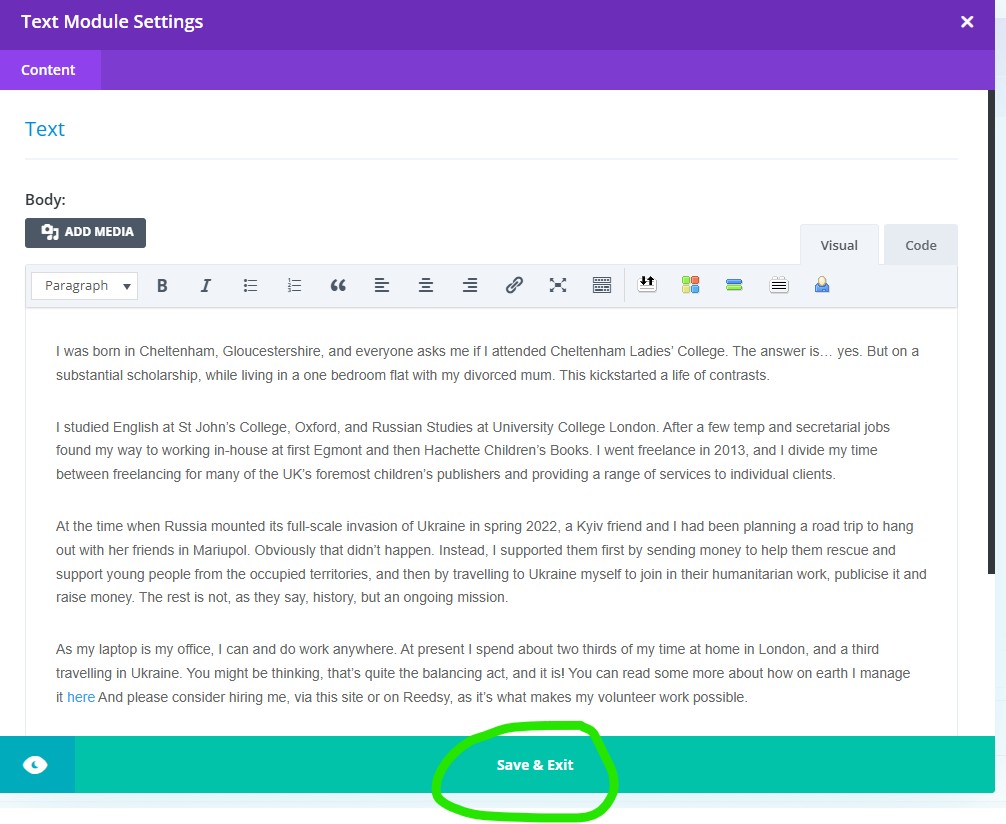
Note that the black Add Media button at the top of the editing area allows you to add embed images in your text. Training videos on how to add images have been provided.
When you have made your changes, don’t forget to click the green “Save and Exit” button at the bottom of the editing screen.
Then check how your page looks on the front end of the site.
Tip: It is a good idea to have two tabs open in your browser – one showing the editing screen and the other showing the front end of your site.
Note: Caching issues may be a problem here. For example, you may save your changes and then find that they are not showing on the front end of your site. In fact, if you have saved your changes, they will have been made at server level, but your web browser is showing you an old version that it has stored for you. The solution can be to clear your browser’s cache (consult your browser’s support on how to do this) or to try looking at your page on a completely different computer or mobile phone.
You can also try clicking on the Purge Cache option at the top of the screen, which will clear the server cache.
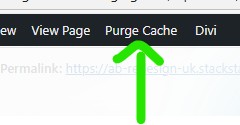
If the problem persists, try again in a few hours. If the problem persists, please get in touch and we will investigate further for you.
Editing Images
If you want to change an image on the page, first upload your image to the media library via the Media tab on your dashboard. Then go back to your page editing screen and choose the Image box. Follow the instructions to upload the new image from your image library. View the training videos for more information on how to upload an item to your media library.
Note that any images uploaded to the site are automatically resized to 1200px wide. This process can take a few minutes, we advise that you upload your images at the beginning of an editing session so they will be ready for use when you edit your pages.
WordPress Training Videos
On our training site, you can view some general WordPress training videos. If you are new to WordPress, we strongly advise you look at the videos as they provide a good introduction. There are videos on how to upload images, how to display images, how to add links to your pages etc. To view the videos, click on the member login link below.
Username: (do not enter email address if asked – use password below):
Training
Password:
PeachMangoCatLemon-007
Both are case sensitive.
After you login, you will see blue links to the videos at the top and bottom of the page. Click on either.
Paid-for Editing Service
WordPress can be difficult to master. If you do not have the time or technical inclination to edit your site, you can always use our paid-for editing service. We charge by the hour for our time. Our average update invoices are between £15 and £30 (depending on what exactly needs doing). Just email your brief and any media you want to include to moc.liamg@setisbewoiduts.
Editing support
If you have any queries about how to edit your site, please email moc.liamg@setisbewoiduts or ku.oc.sbewkoob@zil Please give full details on what you are trying to do, what page, what image, what the problem is etc. We aim to respond within 24 hours but in busy times, response time can be up to 48 hours. We do not offer editing support during stated holiday periods.